
Uninstall Claude Code fully on Mac

Claude Code is a command-line tool; there’s no app bundle to drag to Trash. Running the uninstall command removes the binary, but config files, cache, and session data stay behind. The right removal also depends on how Claude Code was installed.
Below is how to remove Claude Code right: a quick way with App Cleaner & Uninstaller, and separate step-by-step instructions for the native installer, npm, and Homebrew.
Test environment: Claude Code v.2.1.128, MacBook Pro M1, macOS Tahoe 26.4.1.
This article contains:
The way of uninstalling Claude Code depends
Uninstalling depends on how Claude Code got on a Mac. Run this in Terminal to check:
which claude
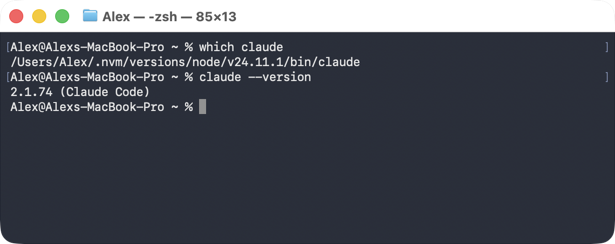
| Result: Path contains | Install method | Uninstall with |
|---|---|---|
| /opt/homebrew/ | Homebrew | brew uninstall |
| /usr/local/bin/ or ~/.nvm/ | npm | npm uninstall -g |
| ~/.local/bin/ | Native installer | Uninstaller, Terminal, Finder |
How to uninstall Claude Code with the uninstaller
Use this method if Claude Code was installed via the native installer.
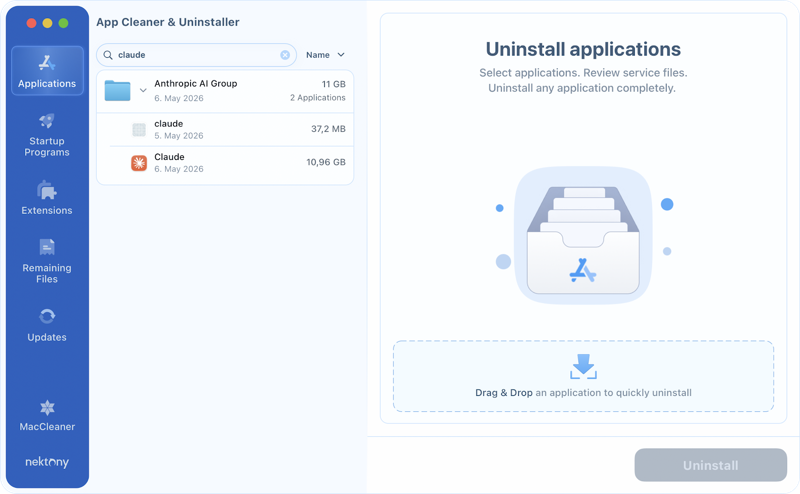
App Cleaner & Uninstaller finds the app bundle and all associated files automatically.
Check out how to remove Claude Code with App Cleaner & Uninstaller:
- Quit Claude Code → terminate all Claude Code processes in Activity Monitor.
- Get and open App Cleaner & Uninstaller.
- Wait a moment while the tool scans your applications.

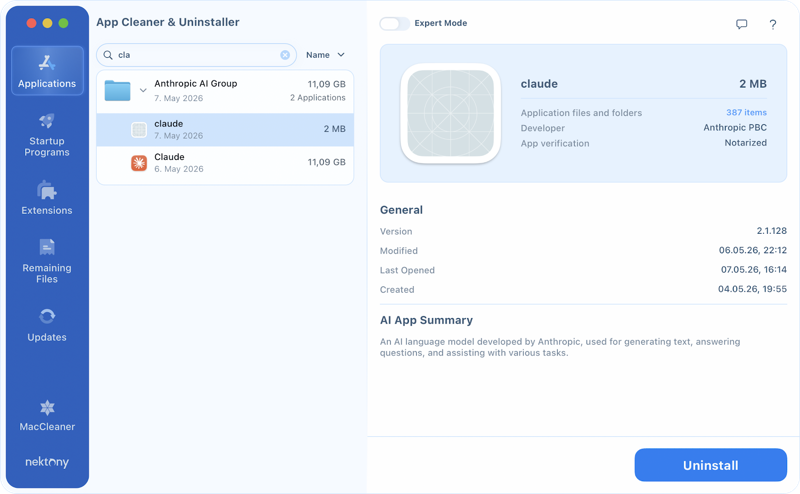
- Type Claude in the search placeholder.
- Locate Claude Code → click on it → click Uninstall.
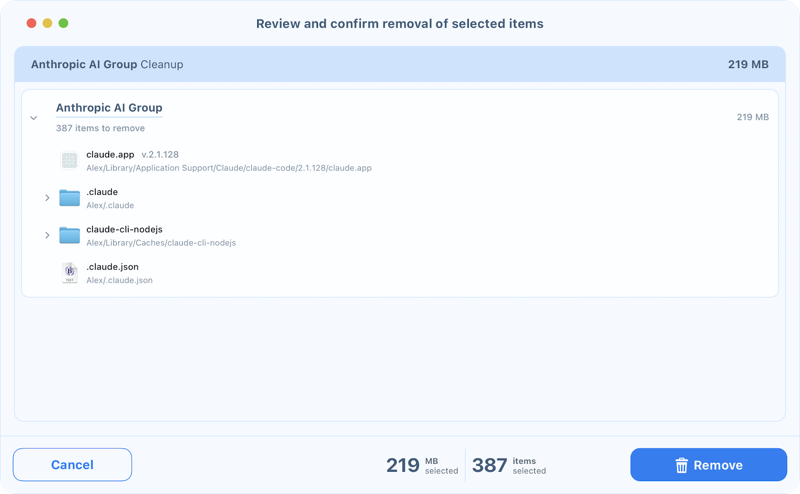
- Confirm removing all Claude Code files in the preview window.
- Wait for the removal completion, and then you can close it.


Uninstall Claude Code in Terminal
This method also applies if you used the native installer to get Claude Code.
- Open Terminal.
- Run each command individually, one at a time:
- rm -rf ~/Library/Application\ Support/Claude/claude-code
- rm -rf ~/Library/Caches/claude-cli-nodejs
- rm -rf ~/Library/Application\ Support/Claude/claude-code-vm
- rm -rf ~/Library/Application\ Support/Claude/local-agent-mode-sessions
- rm -rf ~/Library/Application\ Support/Claude/Session\ Storage
- rm -rf ~/.claude
- rm ~/.claude.json
Optional: remove the whole shared Claude folder.
If Claude Desktop is not installed, you can remove the entire folder:
rm -rf ~/Library/Application\ Support/Claude
If you have a lot of projects and want to remove project-level settings too, go to each project directory using the cd command and run inside each project:
- rm -rf .claude
- rm -f .mcp.json
Delete Claude Code files in Finder
Use this as a GUI alternative to the Terminal rm commands, no Terminal required. This method refers to the native installer version.
Step 1: Quit Claude Code completely.
- Press Cmd+Q when in Claude Code.
- If it doesn’t respond, open Activity Monitor → search for Claude → select any Claude or CoworkVM processes → click the X button to force-quit.
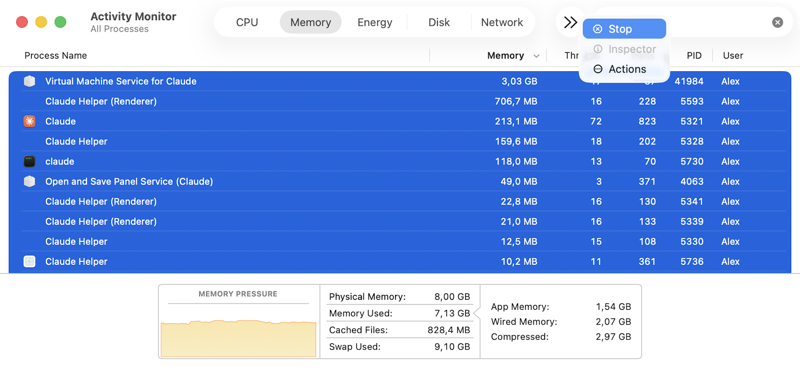
Step 2: Delete the Claude Code app.
- Open Finder → in the menu bar, click Go → Go to Folder (Shift+Cmd+G) → enter ~/Library/Application Support/Claude/claude-code/
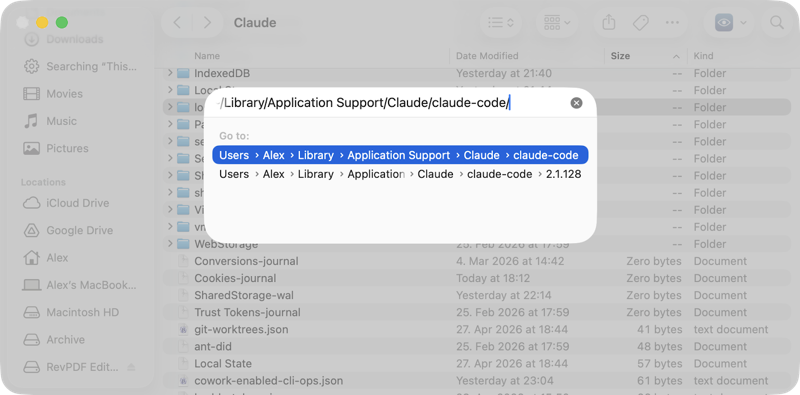
- Inside claude-code you’ll find a folder named after the version number (e.g. 2.1.128), which contains claude.app.
- Right-click the claude-code folder → Move to Trash.
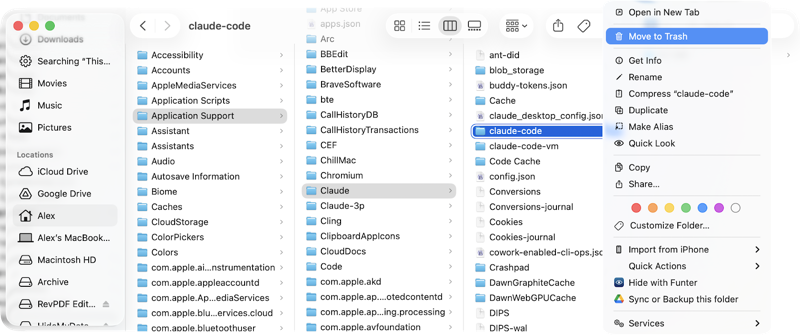
Step 3: Delete Claude Code residual files.
- Open Finder → Go → Go to Folder (Shift+Cmd+G) → enter ~/.claude:
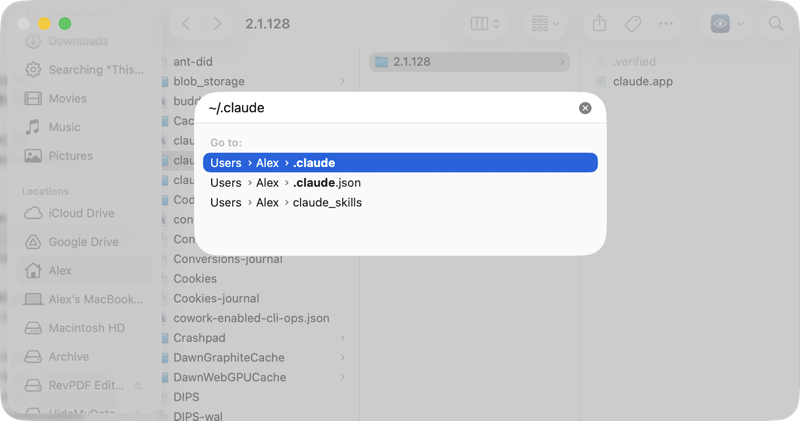
- Right-click the .claude config folder → Move to Trash.
-
Repeat the flow for these paths:
- ~/.claude.json
- ~/Library/Caches/claude-cli-nodejs
- ~/Library/Application Support/Claude/claude-code-vm
- ~/Library/Application Support/Claude/local-agent-mode-sessions
- ~/Library/Application Support/Claude/Session Storage
If Claude Desktop is not installed, you can move the entire ~/Library/Application Support/Claude/ folder to Trash.
Step 4: Empty Trash.
Claude Code uninstall with npm
Use this method if you installed Claude Code by running npm install -g @anthropic-ai/claude-code.
Step 1: Remove the Claude Code package.
npm uninstall -g @anthropic-ai/claude-code
- Verify: which claude should return nothing.
- Also confirm with: npm list -g --depth=0 (no package exists: @anthropic-ai/claude-code).
Step 2: Remove Claude Code leftover files.
- rm -rf ~/Library/Caches/claude-cli-nodejs
- rm -rf ~/.npm/_cacache/
- rm -rf ~/.claude
- rm ~/.claude.json
If Node.js is managed via nvm and you used multiple Node versions, Claude Code may be installed in each. You have to switch to each version with nvm use X.X and run npm uninstall -g @anthropic-ai/claude-code for each one.
Uninstall Claude Code with Homebrew
Use this method if you used brew to install Claude Code.
Step 1: First, confirm the exact name installed.
- brew list | grep claude
Step 2: Uninstall Claude Code.
- brew uninstall claude-code, or
- brew uninstall claude-code@latest
Step 3: Remove unused dependencies.
- brew autoremove
- brew cleanup
Step 4: Verify removal.
- which claude should return nothing.
Step 5: Remove Claude Code leftover files.
Homebrew does not remove user config files. Clean them up manually by running these commands one by one:
- rm -rf ~/Library/Caches/claude-cli-nodejs
- rm -rf ~/Library/Application\ Support/Claude/claude-code-vm
- rm -rf ~/Library/Application\ Support/Claude/local-agent-mode-sessions
- rm -rf ~/Library/Application\ Support/Claude/Session\ Storage
- rm -rf ~/.claude
- rm -f ~/.claude.json
Final points
- Use App Cleaner & Uninstaller to remove Claude Code (native installer) and all its files in one pass, no Terminal required.
- Use the Terminal method matching your install (native installer, npm, or Homebrew), then clean up leftover files with the rm commands or via Finder.
Frequently asked questions
How to uninstall the MCP servers installed with Claude Code?
MCP servers are installed separately and are not removed when you uninstall Claude Code.
- To remove MCP servers with Terminal:
- rm -rf ~/.claude.json
- Then reach each project directory with cd and run inside each one:
- rm -rf .claude
- rm -f .mcp.json
- To list and remove npm-based MCP servers:
- npm list -g --depth=0 | grep mcp - see what’s installed.
- npm uninstall -g [package-name] - remove each one.
- To remove Homebrew-based MCP servers:
- brew uninstall [package-name]
How to delete a Claude Code account?
Uninstalling Claude Code or Claude Desktop does not delete your Anthropic account. Both apps share the same account at claude.ai and console.anthropic.com.
To delete the account:
- Go to console.anthropic.com → Account Settings → Delete Account.
This is irreversible and removes all projects, API keys, and data. To revoke access without closing the account, go to console.anthropic.com → API Keys and delete individual keys instead.
How to delete the Claude CLI?
Claude CLI and Claude Code are the same thing (the @anthropic-ai/claude-code package provides the claude CLI command). Claude Desktop is a separate app and is not a CLI tool.
To remove the Claude CLI:
- Uninstall via the method matching your install (npm, Homebrew, or uninstaller).
- Use grep -n ‘claude’ ~/.zshrc to check ~/.zshrc, ~/.bashrc, or ~/.zprofile for any shell aliases or claude entries and remove them.
- Run source ~/.zshrc (or the relevant file) to apply the changes.