How to uninstall Telegram on Mac completely

Dragging Telegram to Trash removes the app but leaves behind gigabytes of cached media, preferences, containers, and logs tucked away in your Library folder, which macOS never cleans up for you. All of that has to be removed for uninstalling the app completely.
This post is about two ways to uninstall Telegram completely: a one-click method with App Cleaner & Uninstaller and a manual approach through Finder, plus instructions for deleting your Telegram account if you want to close it for good.
Test conditions: Telegram v12.6, MacBook Pro M1, macOS Tahoe 26.4.1.
This article contains:
- 1. How to uninstall Telegram the easy way
- 2. How to delete Telegram manually in Finder
- 3. How to delete a Telegram account
- 4. FAQs
How to uninstall Telegram the easy way
Whether you’re freeing up space, switching messengers, or reinstalling Telegram, it’s important to uninstall it properly. App Cleaner & Uninstaller automates this process by scanning your Mac, gathering all Telegram-related files, and removing them in one go. All you need to do is select it all and click Remove.
How to uninstall Telegram with App Cleaner & Uninstaller:
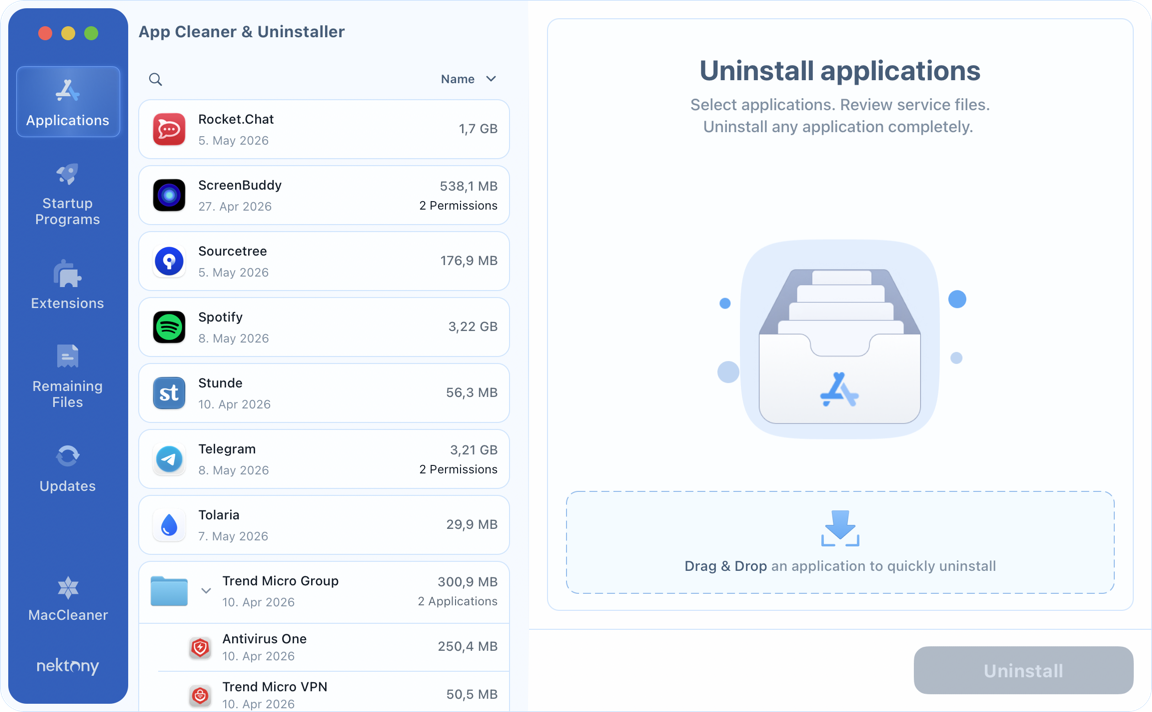
- Get and start App Cleaner & Uninstaller.
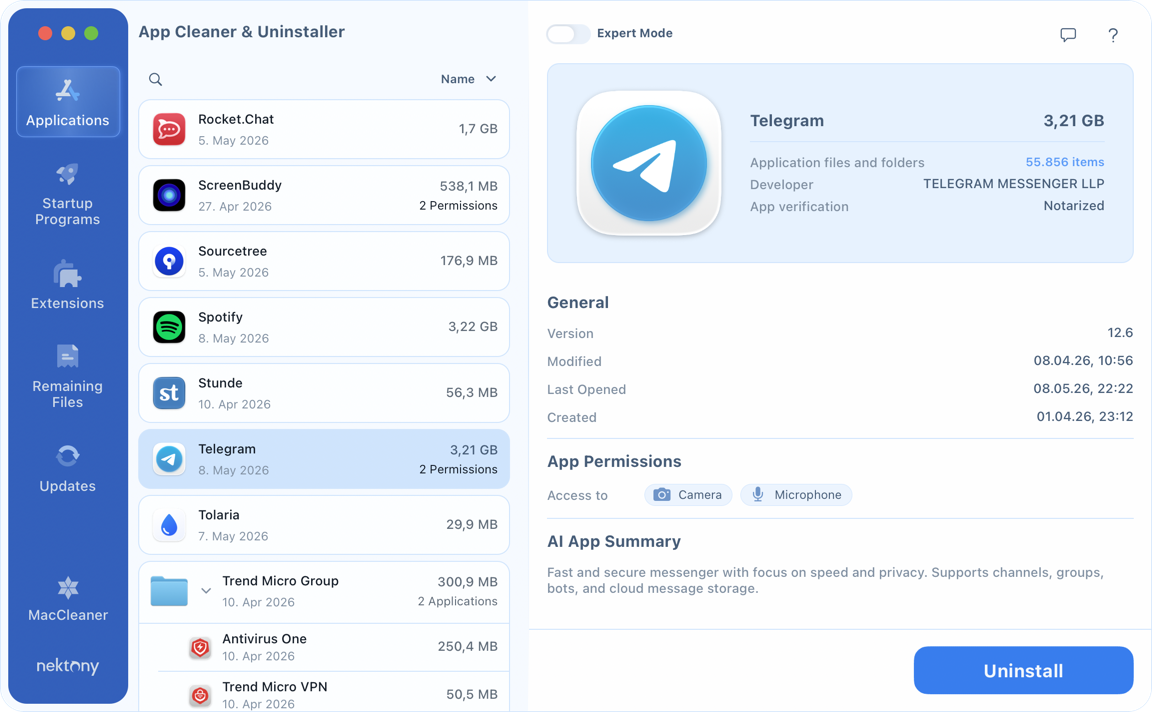
- Let the initial scan run to completion → find Telegram.

- Click on Telegram.
- Click on Uninstall → confirm the deletion in the preview list.
- If Telegram is running as of this step, quit it in App Cleaner & Uninstaller.
- Once the progress bar clears, click Close → Empty Trash.


Note: App Cleaner & Uninstaller works correctly with both the Mac App Store version and the direct download from telegram.org. It identifies the right file paths automatically, regardless of which source you used.
Also Read: Best uninstaller for Mac
How to delete Telegram manually in Finder
Doing this manually means removing the Telegram app through Finder, then locating and deleting all related files stored in different Library locations one by one. There will be no automated actions here.
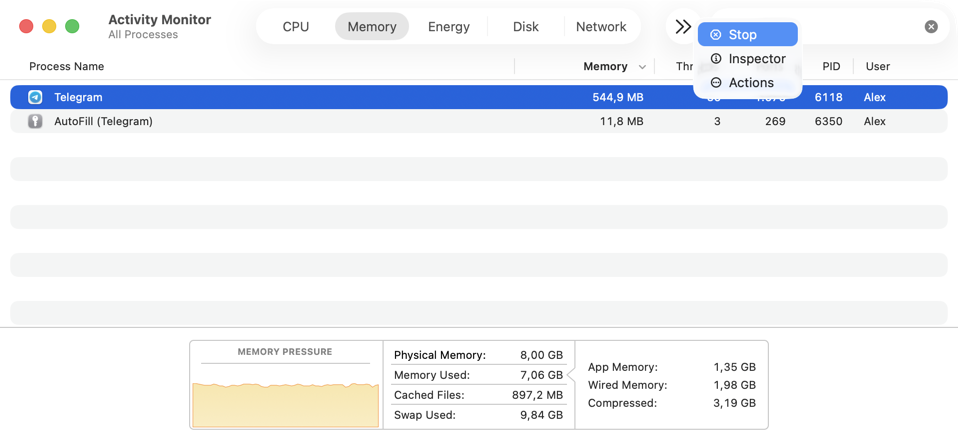
Step 1: Stop all Telegram processes.
- Press Cmd+Q in Telegram.
- Open Activity Monitor → search Telegram → select the process → click X.
Step 2: Remove the Telegram app.
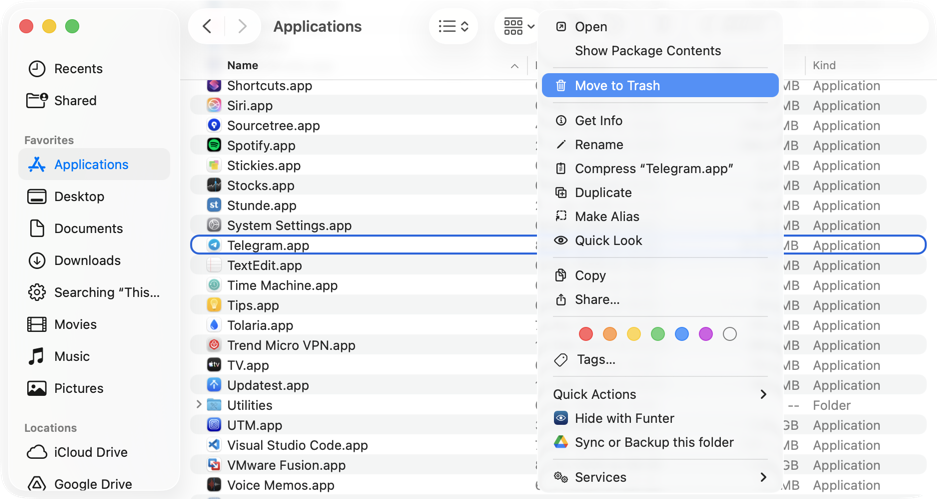
- Open Finder → go to the Applications folder.
- Find Telegram.app → right-click → Move to Trash.
Step 3: Remove Telegram support files.
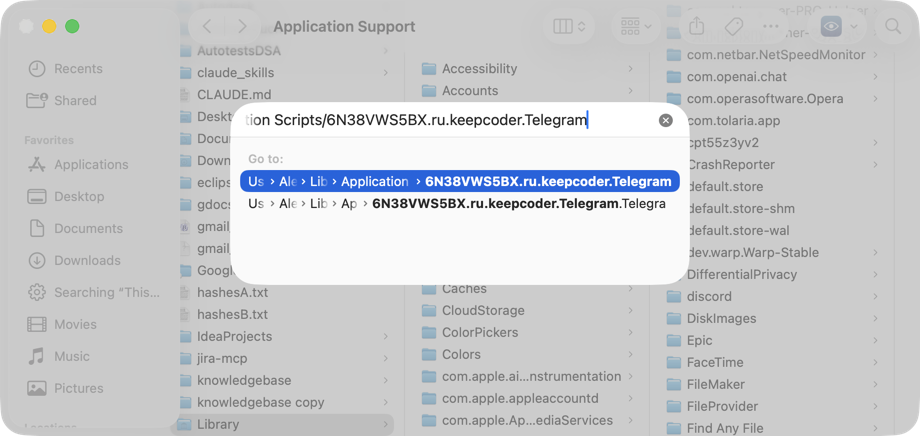
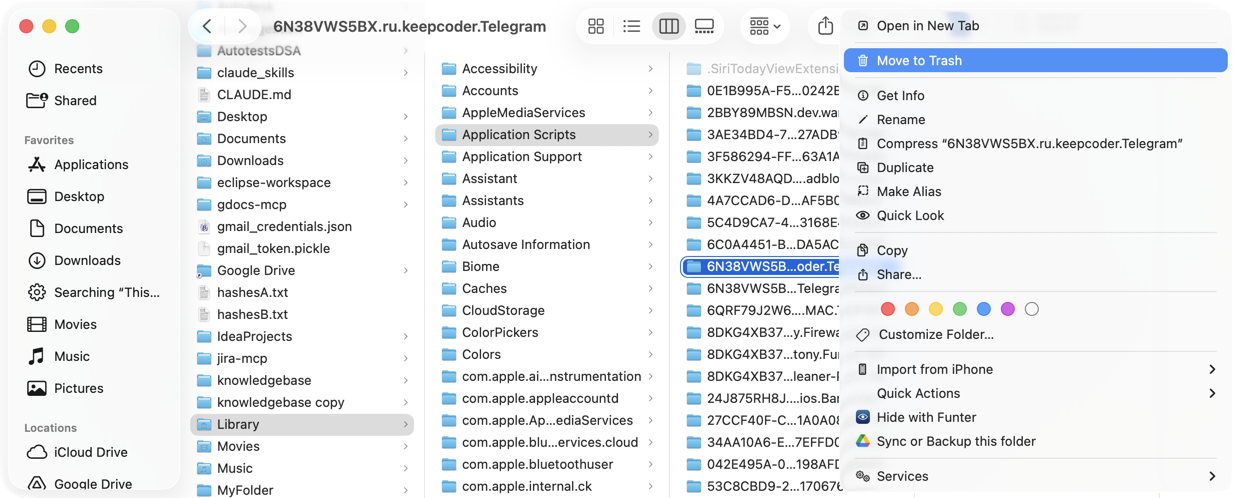
- In Finder, press Shift+Cmd+G → enter ~/Library/Application Scripts/6N38VWS5BX.ru.keepcoder.Telegram → press Return → move the folder to Trash.

- Move the Telegram folder to Trash.

-
Repeat the process of trashing the Telegram leftovers as explained above:
- ~/Library/Application Scripts/ru.keepcoder.Telegram.TelegramShare
- ~/Library/HTTPStorages/ru.keepcoder.Telegram
- ~/Library/Caches/ru.keepcoder.Telegram/
- ~/Library/Containers/ru.keepcoder.Telegram.TelegramShare
- ~/Library/Group Containers/6N38VWS5BX.ru.keepcoder.Telegram
- ~/Library/Preferences/ru.keepcoder.Telegram.plist
- ~/Library/Saved Application State/org.telegram.desktop.savedState/
- ~/Library/Logs/Telegram Desktop/
- ~/Library/Application Support/CrashReporter/Telegram_(crash report ID).plist
-
Remove other temporary cache files.
- Open Finder → go to /private/var/folders/.
- Use Finder search bar → type telegram.
- Search in: This Folder.
- Move Telegram-related files you found to Trash.
- The files you search here shall be as follows:
- /private/var/folders/*/***/*/com.apple.WebKit.GPU+ru.keepcoder.Telegram
- /private/var/folders/*/***/*/com.apple.WebKit.Networking+ru.keepcoder.Telegram
- /private/var/folders/*/***/*/com.apple.WebKit.WebContent+ru.keepcoder.Telegram
- /private/var/folders/*/***/*/ru.keepcoder.Telegram
-
If you installed Telegram from the Mac App Store, also delete:
- ~/Library/Containers/ru.keepcoder.Telegram/
Step 4: Empty Trash.
How to delete a Telegram account
Removing the app leaves your account fully intact: messages, contacts, and history stay on Telegram’s servers. You can reinstall and log back in at any time. Account deletion is a separate action from uninstalling.
And there are two ways to do it.
Note:
- Account deletion is irreversible. Once deleted, all messages, contacts, groups, channels, and account data are permanently removed.
- Deletion is not immediate by default. If you choose a delay option, Telegram will delete your account after a grace period of up to 30 days. You can cancel the process during this time.
- The Delete Account Now option (on mobile) is an immediate account removal.
- If you don’t use Telegram, your account is automatically deleted after a default inactivity period of 6 months, which can be adjusted in Privacy and Security.
- Secret Chats are stored only on your device, not on Telegram servers. Deleting the app or account removes them permanently.
- Make sure to export or save anything important (messages, media, or chat history) before proceeding, as it cannot be recovered after deletion.
Deleting the Telegram account via the app (desktop)
- Open Settings.
- Go to Privacy and Security.
- Click Delete My Account.
- Choose a timeframe.
- Confirm with your phone number.
Deleting the Telegram account via the app (mobile)
- Open Settings.
- Go to Privacy and Security.
- Scroll down to Automatically delete my account.
- Choose a timeframe or select Delete Account Now.
- Confirm.
Deleting the Telegram account through the web
- Go to https://my.telegram.org/auth in any browser.
- Enter your phone number.
- Log in.
- Delete Account.
Note: Log Out and Delete My Account are different actions. Logging out leaves your account and all your data intact.
Final message
- Use App Cleaner & Uninstaller to remove any Telegram version and all its caches, logs, containers, and support files in one pass.
- Try the manual method, but be ready for time-consuming efforts to reach each Library path in Finder, about ten folders for a complete removal.
Frequently asked questions
How to clear Telegram cache on Mac without uninstalling the app?
Inside Telegram:
- Go to Settings.
- Click Data and Storage.
- Then Storage Usage.
- Select which media types to clear.
- Click Clear Entire Cache or Clear Selected.
In Finder:
- Open Finder → press Shift+Cmd+G.
- Paste ~/Library/Caches/ru.keepcoder.Telegram/.
- Delete the Telegram cache folder.
- For the App Store version, the cache sits inside ~/Library/Containers/ru.keepcoder.Telegram/Data/Library/Caches/.
Clearing the cache removes downloaded media and file previews. Chat history stays on Telegram’s servers and reloads when you open the app again.
If I uninstall Telegram, will my conversations be deleted?
No, your standard chats won’t be deleted after uninstalling Telegram. Standard chats and group messages are stored on Telegram’s servers, not locally on your Mac. Removing the app leaves your history untouched. Log in again on any device, and everything comes back.
Secret Chats are the exception. They use end-to-end encryption and stay only on the specific device where the conversation is open. Uninstalling Telegram deletes them with no recovery option.
How to remove contacts from Telegram?
- Open the chat.
- Click the contact’s name.
- Click Edit.
- Delete Contact.
Removing a contact from Telegram does not affect your Mac Contacts app or your iPhone address book.
How to stop syncing my phone contacts in Telegram?
This removes your phonebook from Telegram’s servers and prevents future syncing.
- Open Telegram.
- Go to Settings.
- Click Privacy and Security.
- Then Data Settings.
- Turn off Sync Contacts.