
How to uninstall OBS fully on Mac

Dragging OBS to Trash removes the app bundle and nothing else. Behind it, OBS leaves scene configurations, preferences, caches, and plug-ins. This all needs to be removed.
Below you’ll find how to remove OBS entirely in various ways: a one-click removal with App Cleaner & Uninstaller, a full manual route via Finder, and targeted steps for deleting individual plug-ins and the virtual camera extension.
This article contains:
- 1. How to uninstall OBS Studio instantly
- 2. How to delete OBS manually in Finder
- 3. How to uninstall SE Live from OBS
- 4. FAQs
How to uninstall OBS Studio instantly
App Cleaner & Uninstaller scans for and removes all files associated with an app in one pass: application support, preferences, caches, logs, and plug-ins. It’s the fastest way to get OBS off your Mac without manually hunting through hidden Library folders.
How to remove OBS with App Cleaner & Uninstaller:
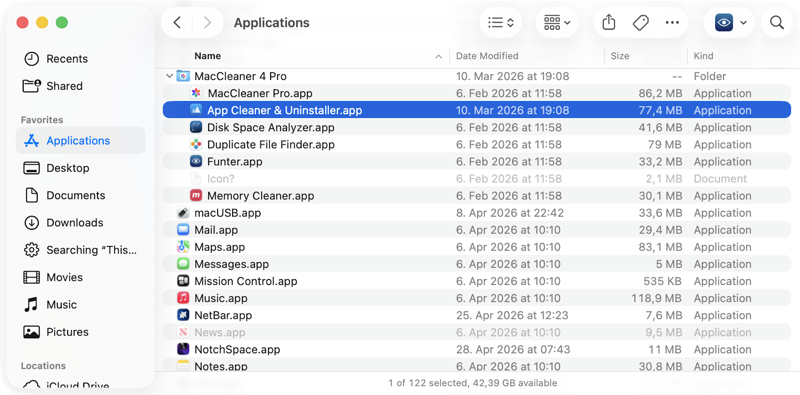
- Download and open App Cleaner & Uninstaller from Launchpad or the Applications folder.

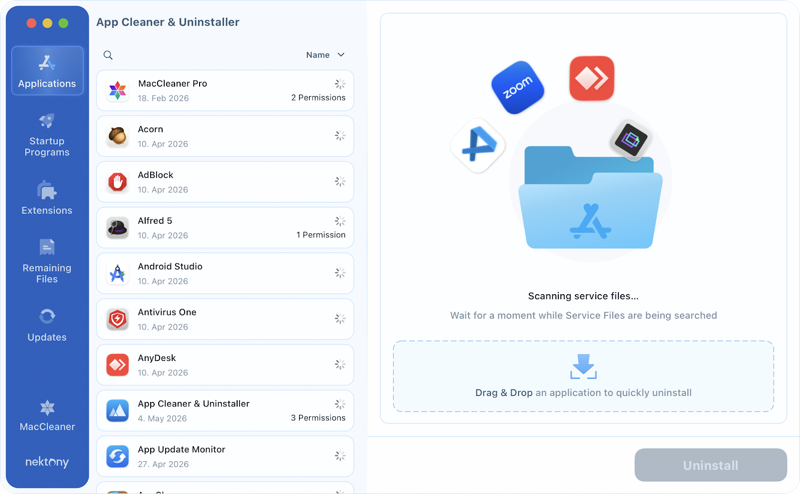
- Wait for the scan to finish. The tool discovers all installed applications on its own.

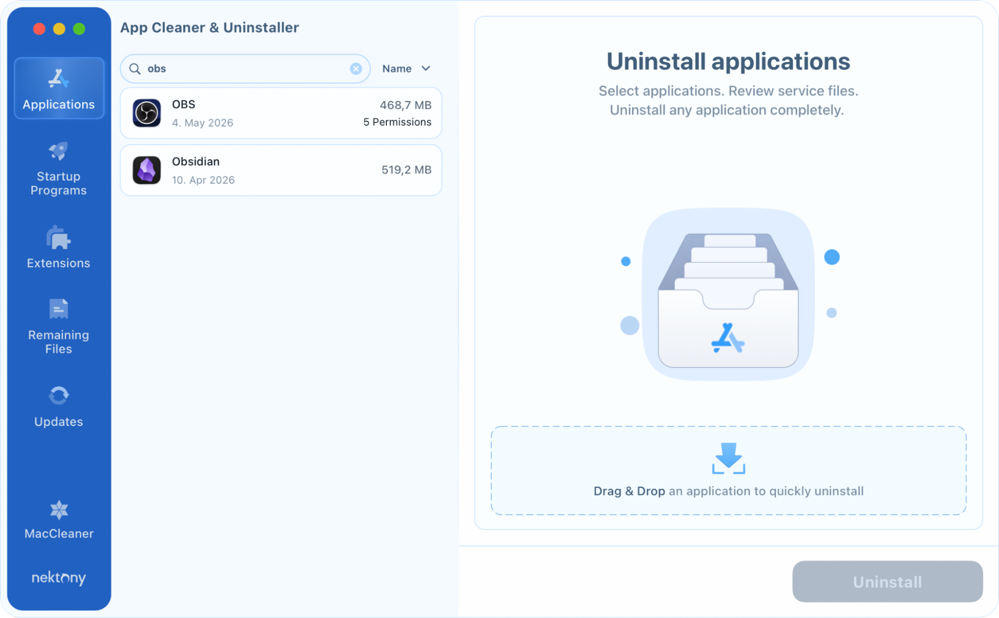
- Start typing OBS in the search box.

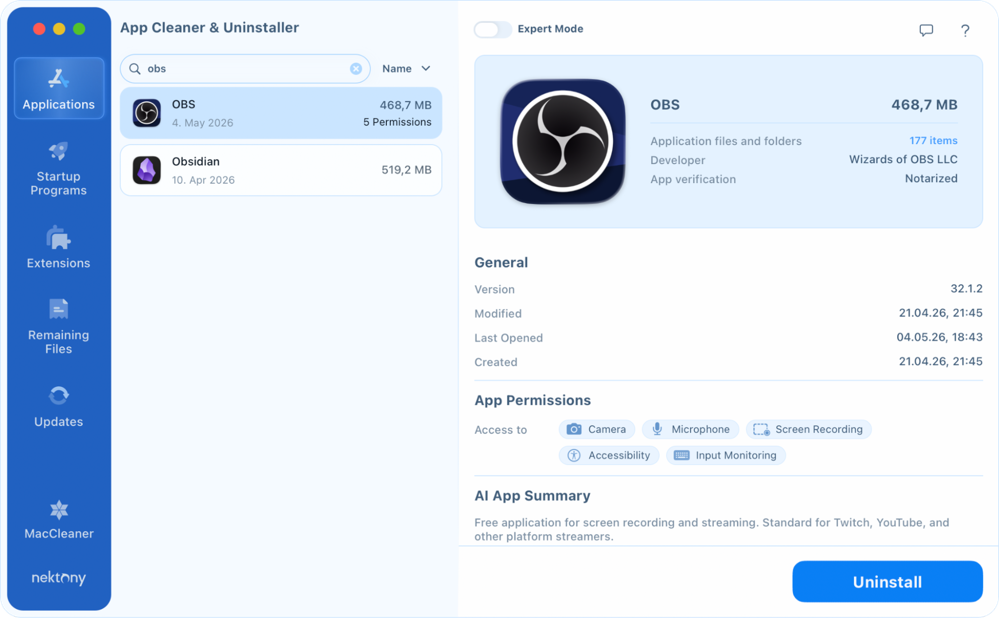
- Click on OBS.
- Enable the Expert Mode → review the associated files shown in the right panel:
- ~/Library/Application Support/obs-studio/
- ~/Library/Preferences/com.obsproject.obs-studio.plist
- ~/Library/Caches/com.obsproject.obs-studio/
- ~/Library/Logs/obs-studio/
- Select OBS → all checkboxes are selected by default. Double-check it:
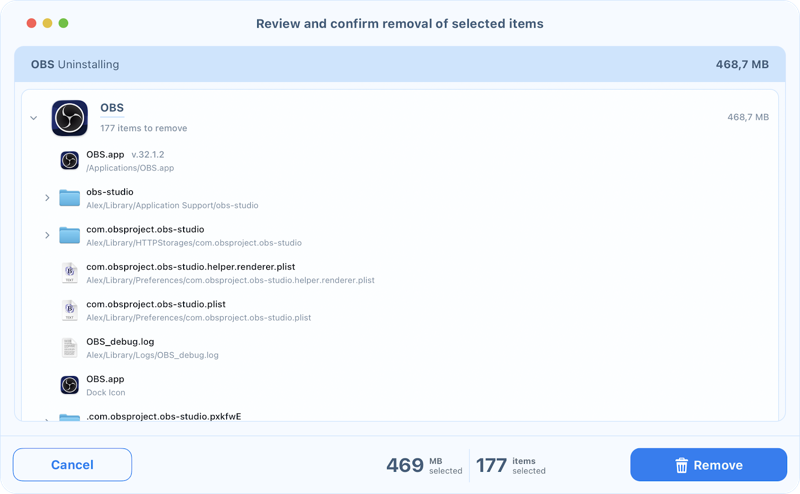
- Click Remove → confirm deleting all OBS-related files in the preview window.
- Close OBS via App Cleaner & Uninstaller if it is still running.
- Watch for the OBS uninstalling progress and OBS successful removal outcome.
- Empty Trash.




How to delete OBS Studio manually in Finder
In this method, you’ll delete the app and then track down each hidden file location by hand. Nothing gets removed on its own, every path needs a separate trip to Finder.
Test environment: OBS Studio v.32.1.1, MacBook Pro M1, Tahoe 26.4.1.
Deleting ~/Library/Application Support/obs-studio/ removes all your OBS scenes, profiles, settings, plugins, logs, and hotkeys. There’s no built-in recovery. If you plan to reinstall OBS and keep your setup, back up that folder first.
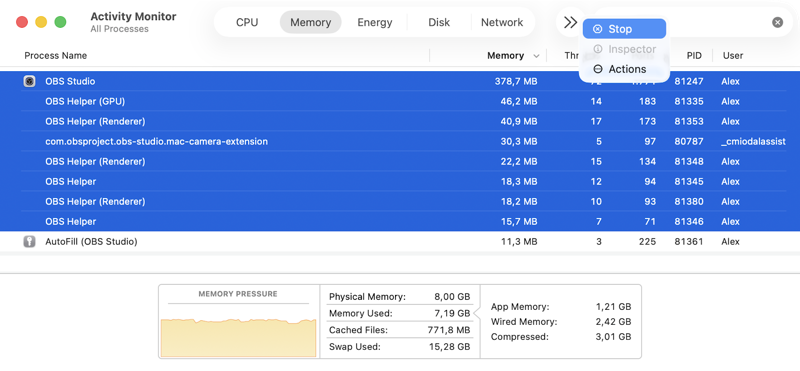
Step 1: Quit OBS completely.
- Press Cmd+Q inside OBS.
- Alternatively, open Activity Monitor → search for OBS → select OBS processes → click the X button.
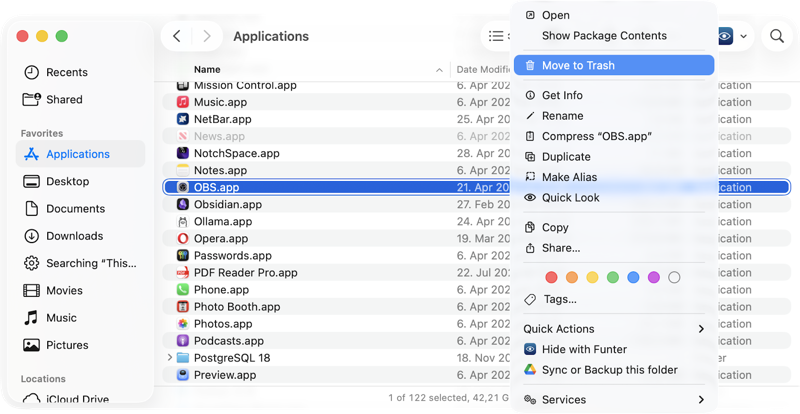
Step 2: Delete the application.
Open Finder → go to the Applications folder → find OBS.app → right-click it → select Move to Trash.
Step 3: Delete all OBS service files.
- In Finder, press Shift+Cmd+G → type ~/Library/Application Support/obs-studio/ → press Return.
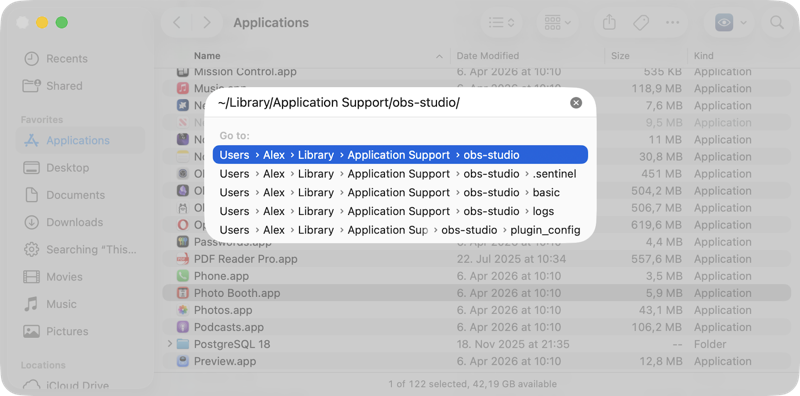
- Right-click the OBS Application Support folder → Move to Trash.
-
Repeat the process for the following directories:
- ~/Library/Application Support/obs-studio
- ~/Library/HTTPStorages/com.obsproject.obs-studio
- ~/Library/Caches/com.obsproject.obs-studio
- ~/Library/Preferences/com.obsproject.obs-studio.helper.renderer.plist
- ~/Library/Preferences/com.obsproject.obs-studio.plist
- ~/Library/Logs/OBS_debug.log
- ~/Library/Caches/com.plausiblelabs.crashreporter.data/com.obsproject.obs-studio
Step 4: Empty Trash.
How to uninstall SE Live from OBS
Removing a plug-in is a matter of finding its folder in ~/Library/Application Support/obs-studio/plugins/ and dragging it to Trash. And SE Live (StreamElements) is one of the most commonly installed OBS plug-ins.
- Quit OBS completely.
- Open Finder, press Shift+Cmd+G, and navigate to ~/Library/Application Support/obs-studio/plugins/.

- Find the SE Live plug-in: it appears as obs-streamelements-core.plugin.

- Drag it to Trash.
- Also, check ~/Library/Application Support/obs-studio/data/obs-plugins/ for matching data files and remove them.
- Empty Trash and restart OBS.


The same pattern applies to any other plug-in: find its named folder inside plugins/, delete it, check data/obs-plugins/ for leftover data, and restart OBS.
Final check
- Pick App Cleaner & Uninstaller to delete OBS and all its service files in a few clicks.
- Follow the manual way and be ready for hitting all OBS paths yourself.
Frequently asked questions
How to uninstall OBS plug-ins on Mac?
- Open ~/Library/Application Support/obs-studio/plugins/ via Finder → Go → Go to Folder.
- Find the plug-in folder: for example obs-StreamFX or obs-streamelements-core.plugin for SE Live.
- Drag it to Trash.
- Also check ~/Library/Application Support/obs-studio/data/obs-plugins/ for data files.
- Empty Trash and restart OBS.
Why does OBS Virtual Camera still appear after I deleted OBS?
In OBS 27 and earlier, the virtual camera is installed as a separate system-level plugin. In this case, deleting OBS app does not remove the virtual camera driver itself. After uninstalling OBS, something may still remain in /Library/CoreMediaIO/Plug-Ins/DAL which loads up as a virtual camera plugin in apps like Zoom, Reams, or FaceTime.
- If OBS is still installed
- Open Terminal and remove the virtual camera system extension by running:
sudo /Library/Application\ Support/obs-studio/uninstall_virtual_camera.sh
- Open Terminal and remove the virtual camera system extension by running:
- If OBS is uninstalled
sudo /Library/Application\ Support/obs-studio/uninstall_virtual_camera.sh- Check /Library/CoreMediaIO/Plug-Ins/DAL → delete, if any.
- Open System Settings.
- Go to General → Login Items & Extensions.
- Scroll down to Camera Extensions.
- Click the ⓘ button.
- Find OBS Virtual Camera.
- Click the three-dot menu → Delete Extension.
- Restart your Mac.
How to delete an OBS virtual camera?
Check your OBS version.
OBS 27 and earlier:
- OBS Virtual Camera is a DAL (Device Abstraction Layer) plugin, being installed as a system-level video device. That’s why it can stick around even after you delete OBS Studio, causing issues with a “ghost” OBS camera in Zoom, Teams.
OBS 28 and newer:
- It uses a newer macOS System Extension architecture and is usually removed automatically together with OBS.
If you use OBS 28 or newer:
- Remove OBS with App Cleaner & Uninstaller.
- Restart your Mac.
- If the Virtual Camera persists:
- Go to System Settings → General → Login Items & Extensions → Camera Extensions.
- Find OBS Virtual Camera → Delete Extension.
If you use OBS 27 and earlier:
- With OBS still installed, run in Terminal:
sudo “/Library/Application Support/obs-studio/uninstall_virtual_camera.sh” - If OBS is already deleted:
sudo rm -rf “/Library/CoreMediaIO/Plug-Ins/DAL/obs-mac-virtualcam.plugin” - Restart your Mac.
Verify removal:
- Open Zoom, Teams, or FaceTime.
- Confirm that “OBS Virtual Camera” no longer appears in the camera list.