Uninstall apps on Mac in 2026: Right methods for every app

Deleting an app on a Mac takes one drag, but a full uninstall needs more than that. Once you start using an app, it spreads service files across hidden Library folders, and the Trash takes none of them. Six methods can remove an app, and they reach very different depths:
| Method | Removes leftovers? | Effort | macOS | Works for |
|---|---|---|---|---|
| App Cleaner & Uninstaller | ✓ Yes | ✓ Seconds | 11-27 | ✓ Any app |
| Finder + manual cleanup | ! By hand | ! 10-20 min | ✓ All versions | ✓ Any app |
| Launchpad X | 𐄂 App only | ✓ Seconds | ! 15 and earlier | ! App Store apps |
| Built-in uninstaller | ! Most | 1-5 min | ! Varies | ! Apps with uninstaller |
| Terminal | ! Exact paths only | ! 10-20 min | ✓ All versions | ✓ Any app |
| Homebrew | ! Cask files only | ! 5 min | ✓ All versions | ! Homebrew apps |
A few things to keep in mind:
- App Cleaner & Uninstaller: not free, but guarantees the complete uninstall,
- Finder: free, but easy to miss some files,
- Launchpad: gone since macOS Tahoe, and it never removed leftovers,
- Built-in uninstaller: only some apps have one,
- Terminal and Homebrew: meant for advanced users.
Read on to see each method step by step and pick the one that fits.
This article contains:
Tracking an app through a dozen hidden Library folders is slow, plus guessing which files belong to the app is easy to get wrong. App Cleaner & Uninstaller lists every file an app owns and removes the whole set in one click after you review it.
What to remove: 4 layers of a Mac app
macOS doesn’t record every installed program in a central registry, like Windows. So no system tool knows what an app puts where. A full uninstall means finding and removing up to four layers by name or bundle ID:
Layer 1 · App bundle. The app you see in /Applications. The only layer the Trash removes.
Layer 2 · Your data in ~/Library. Application Support, Caches, Preferences (.plist), Saved Application State, Containers, Group Containers, Logs.
Layer 3 · Background items. Login items, ~/Library/LaunchAgents, /Library/LaunchAgents, /Library/LaunchDaemons, /Library/PrivilegedHelperTools.
Layer 4 · System-level parts. System and network extensions, VPN configuration profiles, package receipts in /var/db/receipts, Keychain entries.
Here’s how far each method reaches:
| Method | 1 · App bundle | 2 · Library data | 3 · Background items | 4 · System-level components |
|---|---|---|---|---|
| App Cleaner & Uninstaller | ✓ Yes | ✓ Yes | ✓ Yes | ! Except network extensions |
| Finder + manual Library sweep | ✓ Yes | ! What you find | ! What you find | 𐄂 No |
| Drag to Trash / Launchpad X | ✓ Yes | 𐄂 No | 𐄂 No | 𐄂 No |
| App’s built-in uninstaller | ✓ Yes | ! Often skipped | ✓ Yes | ✓ In most cases |
| Terminal | ✓ Yes | ! Exact paths only | ! Exact paths only | ! Receipts only |
| Homebrew | ✓ Yes | ! What the cask lists | ! What the cask lists | ! |
Leftovers seldom slow down a healthy Mac. Their cost is disk space, which can run to GBs for one app, and background agents that still start at login for an app you no longer have.
Before you uninstall an app: a 5-minute checklist
A few minutes here save you from a failed removal or a lost license:
- Quit the app all the way. Close its window, quit its menu bar icon, and check Activity Monitor for leftover processes.
- Turn off its background items. Open System Settings → General → Login Items & Extensions and switch off the app’s entries under App Background Activity.
- On macOS 10.14-12, go to System Preferences → Users & Groups → Login Items.

- Cancel the subscription yourself. Uninstalling doesn’t stop payments. Cancel in the App Store (your account → Subscriptions) or on the developer’s site.
- Sign out and deactivate licenses. Adobe, Microsoft 365, and other licensed apps count activations per device.
- Back up what you made. Documents you saved stay where they are, but some apps keep projects, presets, or chat history inside Library folders. Export them first if you may reinstall later.

How to uninstall apps on Mac in a few clicks
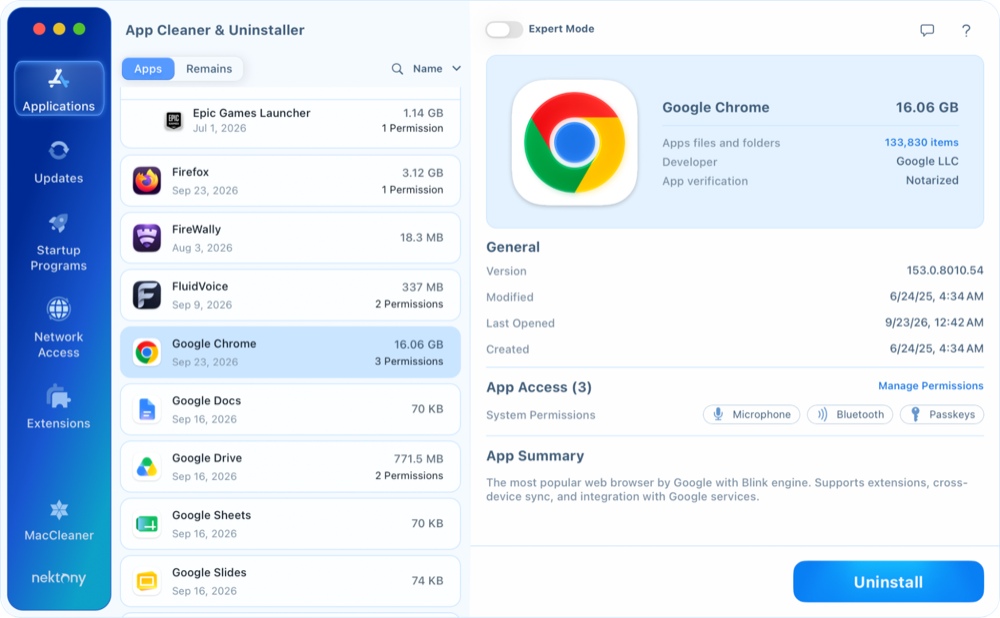
App Cleaner & Uninstaller is an automated uninstallation tool, doing the whole job for you. It matches each app’s bundle ID and developer against a database of 20,000+ apps, so it knows where that app hides its files. Removed files go to the Trash by default, and your personal and system files stay untouched.
Using App Cleaner & Uninstaller means an app gets fully uninstalled in four clicks:
- Download and run App Cleaner & Uninstaller.
- Find the app with search or in the list → select it.
- Click Uninstall → review the app and its files to be deleted.
- Click Remove to finish the uninstallation process.
In addition to the deep removal, App Cleaner & Uninstaller brings more features:
- Batch removal: tick multiple apps and remove several programs at once.
- Leftover cleanup: go to Remains to clear leftovers of apps you already trashed.
- App reset: right-click an app → Reset Application to clear its settings and cache.
- Updater: install updates for all apps in one click without leaving the tool.
- App traffic monitor: spot apps that go online and cut off the ones that shouldn’t.


Also Read: Best uninstallers for Mac
How to delete programs on Mac manually in Finder
Finder is the baseline route. Intel or Apple silicon makes no difference here, and the steps haven’t changed between macOS 10.14 and 27.
Step 1: Quit the app.
- Press Command-Q while in the app.
- Check Activity Monitor for any process still running.
Step 2: Delete the app.
- Open Finder → Applications → locate the app → drag it to the Trash.
- Command-Delete or right-click → Move to Trash do the same.
Step 3: Remove the app leftovers.
- In Finder, press Shift-Command-G, open each folder from the table below, and move items named after the app or its bundle ID to the Trash.
| Directory | What it holds | Safe to delete? |
|---|---|---|
| ~/Library/Application Support/ | Databases, downloads, projects | ! After you back up what you need |
| ~/Library/Caches/ | Temporary data the app rebuilds | ✓ Yes |
| ~/Library/Preferences/ | Settings (.plist files) | ✓ Yes |
| ~/Library/Saved Application State/ | Window positions | ✓ Yes |
| ~/Library/Containers/, ~/Library/Group Containers/ | Data of sandboxed apps, sometimes shared by a suite | ! Only if no other app from the developer uses it |
| ~/Library/HTTPStorages, ~/Library/WebKit | Cookies, sign-ins, web storage | ✓ Yes |
| ~/Library/Logs | Activity and crash logs | ✓ Yes |
| ~/Library/LaunchAgents/ | Background jobs | ✓ Yes |
| /Library/Application Support, /Library/LaunchAgents, /Library/LaunchDaemons, /Library/PrivilegedHelperTools | System-wide components | ! Only items named after the app; needs your admin password |


Step 4: Empty the Trash.
- Until you do, the app still takes up space on your drive.
The catch of this method:
- You have to check dozens of Library folders by name or bundle ID yourself, which takes a while.
- It’s easy to miss a file or delete one that another app from the same developer still needs.
- The Library and dot-folders like ~/.cache are hidden by default, so you need Go to Folder or the Shift-Command-Period shortcut to see them.
- Background items and network extensions stay active until you turn them off in System Settings.
How to delete apps on macOS (11-15) in Launchpad
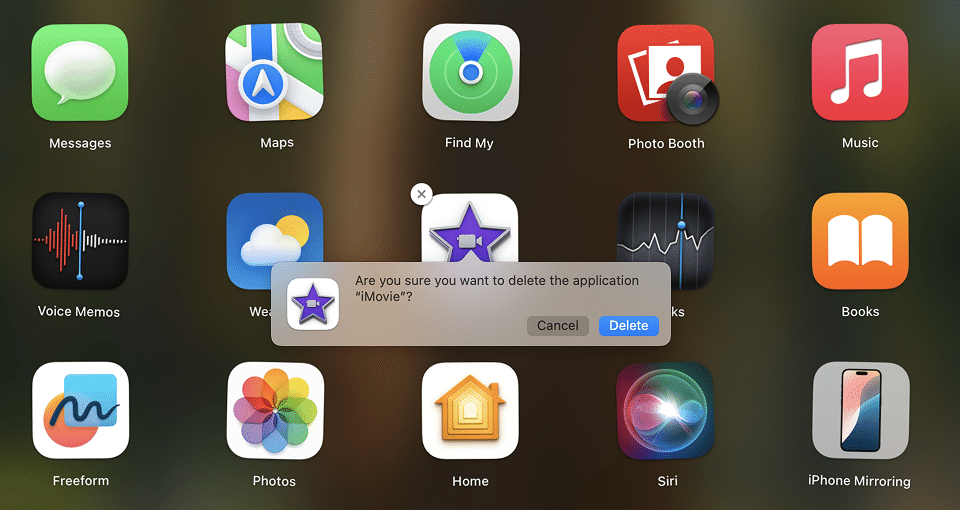
Launchpad lets you delete apps from macOS 11 Big Sur up to 15 Sequoia, and only apps from the Mac App Store. This method is not perfect, since it leaves remnants. But the steps are simple:
- Open Launchpad from the Dock.
- Hold the Option key, or click and hold any icon until it starts to jiggle.
- Click the X on the app you want to remove → Delete.
The catch:
- Apps installed from a .dmg or .pkg never get the X button, on any version.
- macOS 26 Tahoe removed Launchpad, and Golden Gate didn’t bring it back.
- It removes the app only: its service files in the Library stay behind.
- Its login item may still show up in Login Items & Extensions.
How to delete an app on Mac with its uninstaller
Apple calls an included uninstaller “the best way” to remove an app. But only a few apps have one. Security tools, VPN clients, virtualization apps, and Adobe software install helpers and extensions that Finder can’t reach. Their own uninstaller is the right first step, and you’ll usually find it in one of the following places:
- Next to the app in the Applications or another folder: /Applications/<AppName>/Uninstall <AppName>.app
- In the app’s menu or settings:
- zoom.us → Uninstall Zoom, or
- TeamViewer → Settings → Advanced → Uninstall
- As a script, for some VPN clients, available at:
- /Applications/<VPN>.app/Contents/Resources/uninstall.sh
- Run it with sudo in Terminal
- The original installer .dmg, which sometimes includes an Uninstall option.


The catch:
- Only some apps ship an uninstaller, which may be difficult to find.
- Most built-in uninstallers skip files the app created after you installed it.
- VPN scripts run in Terminal with sudo, which isn’t for everyone.
How to remove apps on Mac with commands in Terminal
Terminal suits users who are at home with commands. For everyone else, it’s risky:
- Terminal removal command removes files permanently and has no undo.
- You have to type each path exactly, down to every space and capital letter.
- One typo can delete a folder you never meant to touch.
Nevertheless, Terminal can still remove an app with every file it left, as long as you run one command per location. In the samples below, replace <AppName>, <bundle-id>, and <package-id>, brackets included, with your app’s details, for example “Google Chrome” and com.google.Chrome.
- Open Terminal.
- Force quit the app:
pkill -f "<AppName>" - Remove the app bundle:
sudo rm -rf "/Applications/<AppName>.app"Tip: Type sudo rm -rf with a trailing space, then drag the app from Finder into the Terminal window. Terminal fills in the exact path, so a typo can’t point the command somewhere else.
- Remove remaining files of the app.
- For apps installed from a .dmg, you need to identify and remove each leftover folder, from Caches to Preferences, by its path. The exact set depends on the app, so check which folders it created in Finder before you run any command.
For a typical app, the cleanup starts with these main directories:
1. Remove the app’s cache folder
rm -rf ~/Library/Caches/<bundle-id>2. Remove its data and settings folder
rm -rf ~/"Library/Application Support/<AppName>"3. Removes its preferences file
rm ~/Library/Preferences/<bundle-id>.plist4. Remove the app’s cache in the hidden system folder /private/var/folders
rm -rf "$(getconf DARWIN_USER_CACHE_DIR)<bundle-id>"5. Remove saved window positions
rm -rf ~/"Library/Saved Application State/<bundle-id>.savedState"6. Remove a sandboxed app’s data
rm -rf ~/Library/Containers/<bundle-id>7. Remove cookies, sign-ins, and web storage
rm -rf ~/Library/HTTPStorages/<bundle-id>
rm -rf ~/Library/WebKit/<bundle-id>8. Remove activity and crash logs
rm -rf ~/"Library/Logs/<AppName>" - For apps installed from a .pkg:
- Find the package ID in the installer’s receipts:
pkgutil --pkgs | grep -i <AppName> - Check where the package was installed:
pkgutil --pkg-info <id>
# The location line shows the install folder, usually /. - See what it installed:
pkgutil --files <package-id>
# The paths are relative to that location, so add it in front: Applications/AppName.app means /Applications/AppName.app. - Remove each of those files:
sudo rm -rf "<full-path>" - Clear the receipt:
sudo pkgutil --forget <package-id>
# This deletes only the record, not any files.
- Find the package ID in the installer’s receipts:
- It’s slow: one command for each folder, for each app.
- You get no preview of what you’re about to delete.
- Leftover folders differ from app to app, and anything you don’t target stays on your Mac.
- Every app needs its own set of commands, which adds up fast if you’re removing several.
- Open Terminal.
- List apps installed as casks:
brew list --cask - List command-line tools (formulae):
brew list --formula - Remove an app (cask):
brew uninstall --cask <app-token> - Remove the app and its leftovers listed in the cask:
brew uninstall --zap --cask <app-token>Note: --zap may delete files shared with other apps from the same developer. Check what it will remove first with brew cat --cask <app-token> - Remove a command-line tool (formula):
brew uninstall <formula-name> - It works only for apps Homebrew installed.
- Without --zap, the app’s Library files stay behind.
- The --zap list is written by Homebrew’s volunteer maintainers, so it can miss files, especially after app updates.
- Removed files skip the Trash, with no undo.
- Dependencies installed with the tool stay until you run brew autoremove.
- Finder removes the app, but the Library folders are yours to search.
- Terminal and Homebrew need your expertise in CLI tools.
- Built-in uninstallers help, but a few apps ship one, and most skip later files.
- Launchpad works only for App Store apps on macOS 15 and earlier.
- Finds every file an app owns, so you don’t search Library folders by hand,
- Removes any app in a few clicks, no commands or exact paths needed,
- Works for apps with or without their own uninstaller, from any source,
- Runs on macOS 11 through 27, Launchpad or not,
- Clears leftovers of apps you already dragged to the Trash,
- Resets a stuck app when you want to fix it, not remove it.
- Problem: “The item can’t be moved to the Trash because it’s open.” The app or a helper process is still running.
- Fix: Quit it in Activity Monitor, or find it with ps aux | grep -i appname.
- Problem: The app comes back after you delete it, because a launch agent recreates it.
- Fix: Run launchctl list | grep <bundle-id>, unload it with launchctl bootout gui/$(id -u)/<label>, and delete the agent’s .plist file.
- Problem: “Operation not permitted” because the file is locked.
- Fix: Check with ls -lO, then run sudo chflags nouchg <path>.
- Problem: A VPN or antivirus stays active after removal, because its system extension is still running.
- Fix: Turn it off in System Settings → General → Login Items & Extensions, or use the vendor’s uninstaller.
- Problem: macOS says the app is in use, but nothing runs.
- Fix: Start your Mac in Safe Mode and delete the app there.
- Problem: Corporate apps won’t delete or reappear, because the Mac is managed through MDM.
- Fix: Ask your IT department to remove the device management profile.
- Remove the app from the Dock: right-click → Options → Remove from Dock.
- Limit it with Screen Time → App Limits.
- Clear its data: in App Cleaner & Uninstaller, turn on Show system applications, then right-click the app → Reset Application.
- The fastest complete way is App Cleaner & Uninstaller: select the app, click Uninstall, and it removes the app with all its service files.
- For free, with time to spare: move the app to the Trash in Finder, then search the Library folders for its leftovers.
- For advanced users: remove the app and its folders in Terminal, one command per path.
The catch:
How to uninstall apps with Homebrew
If you installed an app with Homebrew, remove it with Homebrew too, so Homebrew’s records stay accurate.
The catch:
Final one before you go
Whatever brought you here, a full drive, a switch to a new tool, or an app that refuses to go, the goal is the same: nothing left behind. You’ve got options here:
App Cleaner & Uninstaller fills these gaps and does the whole job:
Try it free on the next app you uninstall.
Frequently asked questions
How do you uninstall an app that won’t uninstall?
How do you uninstall built-in Apple apps?
You can’t remove them. Apple keeps its built-in apps on a read-only system volume protected by System Integrity Protection, so Finder, Terminal, and uninstallers all hit the same wall. Here’s what you can do about it:
How do you uninstall an app on Mac?
- For apps installed from a .dmg, you need to identify and remove each leftover folder, from Caches to Preferences, by its path. The exact set depends on the app, so check which folders it created in Finder before you run any command.