Uninstall Gemini AI app on Mac: Detailed removal guide

Gemini for Mac is a lightweight AI wrapper, but even lightweight apps leave files behind. Move it to Trash, and you’ll still have application support folders, launcher components, preferences, and caches spread across your Mac, which never go away on their own.
Keep scrolling to find two options for uninstalling the Gemini AI app from Mac: an automated approach using App Cleaner & Uninstaller, and a Finder-based manual way. Also read about deleting chat history, Gemini account, and more in the FAQ.
All steps were tested on: Gemini v1.56.2.300, MacBook Pro M1, macOS Tahoe 26.4.1.
This article contains:
Uninstall Google Gemini with the uninstaller
It could be switching to another AI tool, reducing background activity, privacy concerns, or just freeing up storage. Whatever the reason, removing Gemini properly matters.
Removing the Gemini app from your Mac does not delete cloud data, account info, or chat history. These ones are stored online and must be managed separately in your Google account settings.
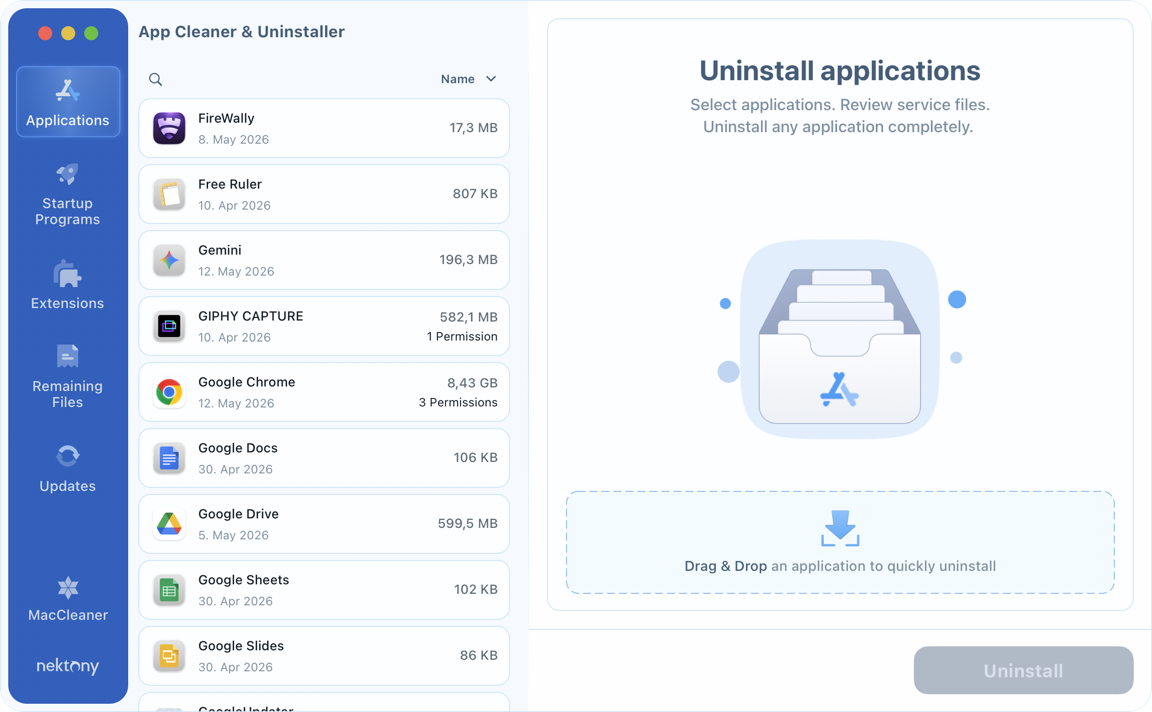
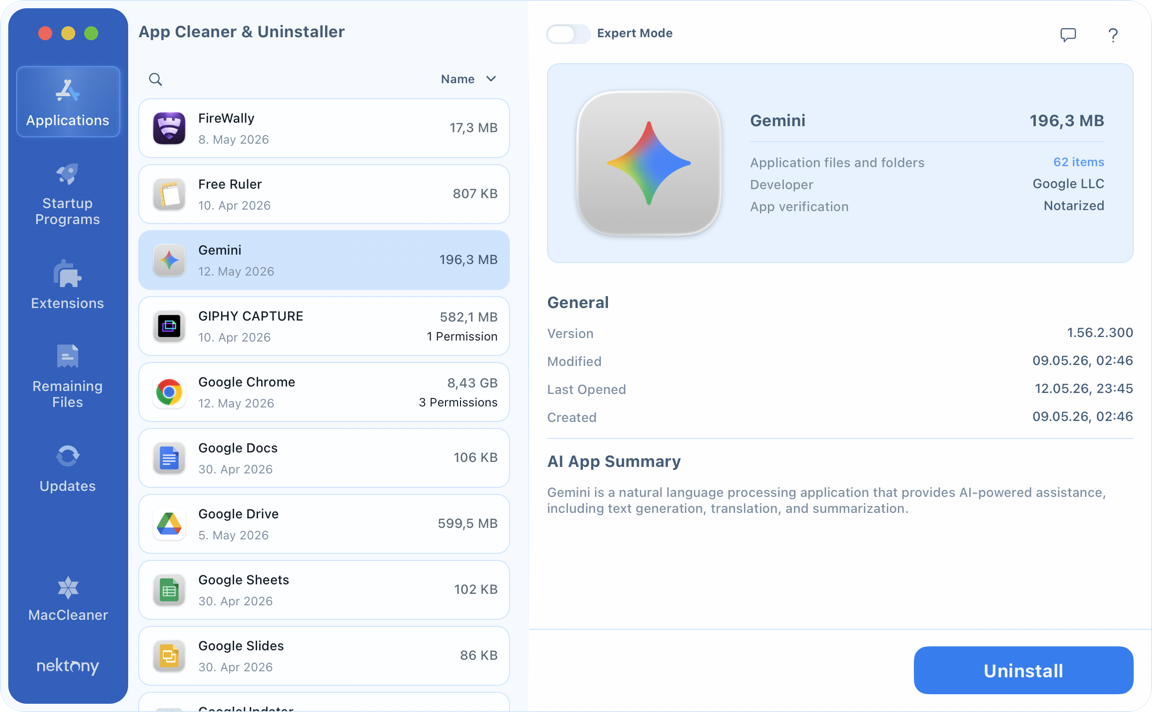
App Cleaner & Uninstaller is a safe and instant way to uninstall Gemini and every associated file from support folders and launcher components to caches and preferences. It takes you only a few clicks to get the job done:
How to uninstall Gemini with App Cleaner & Uninstaller:
- Install and launch App Cleaner & Uninstaller.
- Wait for the tool to finish scanning apps → locate Gemini.

- Select Gemini.
- Push Uninstall → review Gemini files to be deleted → confirm removal.
- If Gemini is still running, App Cleaner & Uninstaller will prompt you to quit it before proceeding. Terminate all Gemini processes in there.
- When the uninstall is complete, finish by clicking Close and emptying Trash.


Delete the Gemini app manually in Finder
If you go with manual removal, it means tracking down each file location yourself since Gemini splits its data across multiple Library subfolders. So, be ready to dig in.
Gemini service files are in subfolders named com.google.GeminiMacOS, not inside the broader Google folder. Delete only those subfolders to avoid affecting Chrome, Drive, or other Google apps sharing that parent directory.
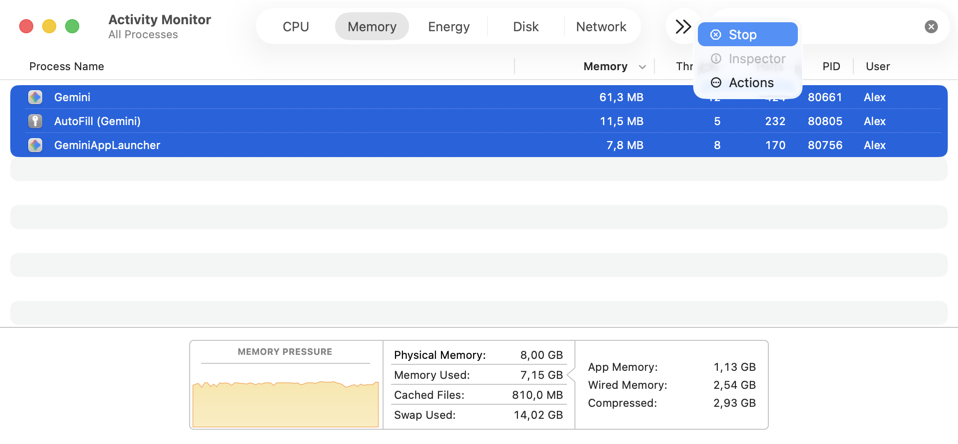
Step 1: Quit Gemini and stop its processes.
- Press Cmd+Q inside the app.
- Open Activity Monitor.
- Search Gemini → select its processes.
- Click the (X) Stop button.
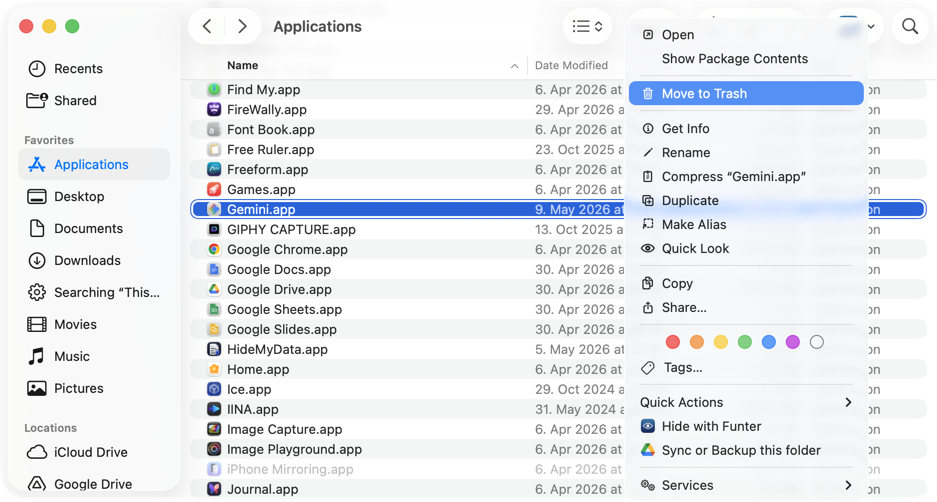
Step 2: Move the Gemini application to Trash.
- Open Finder.
- Go to the Applications folder.
- Find Gemini.app → right-click.
- Move to Trash.
Step 3: Delete all Gemini-related files.
- In Finder, press Shift+Cmd+G.
- Paste ~/Library/Application Support/com.google.GeminiMacOS.

- Press Return.
- Trash the Gemini Application Support folder.

-
Do the same steps again to remove the rest of Gemini’s leftover files:
- ~/Library/Application Support/com.google.GeminiMacOS.launcher
- ~/Library/HTTPStorages/com.google.GeminiMacOS
- ~/Library/Caches/com.google.GeminiMacOS
- ~/Library/Caches/com.google.GeminiMacOS.launcher
- ~/Library/Preferences/com.google.GeminiMacOS.plist
- ~/Library/Preferences/com.google.GeminiMacOS.launcher.plist
-
Move other cache files, which are unique for each user:
-
Use Finder again to navigate to:
- /private/var/folders/
- Use the Finder search bar → enter gemini.
- Narrow your search down to This Folder.
- Go through the results → move Gemini cache files to Trash.
-
You should find files such as:
- /private/var/folders/*/***/*/com.google.GeminiMacOS
-


Step 4: Empty Trash.
Final output
- App Cleaner & Uninstaller uninstall Gemini safely and completely in four clicks, including all its launcher files, caches, and preferences.
- The Finder method targets the same locations but requires manually navigating to each Library folder and cleaning all Gemini files on a step-by-step basis, with a risk of missing some of them.
Frequently asked questions
How to delete Google Gemini chat history?
Delete chats in bulk
- Open Gemini in a browser at gemini.google.com.
- Click Settings (gear icon) at the bottom left.
- Select My Activity.
- Click the Delete button above your activity list.
- Choose your range: Last hour, Last day, All time, or Custom range.
- Confirm by clicking Delete.
Delete individual chats
- Open gemini.google.com.
- In the left sidebar, find the chat under the Chats tab.
- Click the three dots (⋮) next to the chat.
- Select Delete and confirm.
How to delete an account in Google Gemini?
You cannot delete only the Gemini account; Gemini uses your Google Account. To stop using Gemini, you can delete your Gemini activity and uninstall the app. If you want to fully remove all associated data, visit myaccount.google.com → Data & Privacy → Delete your Google Account.
Be aware: This permanently removes access to Gmail, Drive, YouTube, and every other Google service, not just Gemini. Export your data via Google Takeout before proceeding.
How to remove Gemini from Chrome?
If you installed Google Gemini as a Chrome app:
- Open Google Chrome.
- Type chrome://apps in the address bar and press Enter.
- Find Google Gemini.
- Right-click it → Remove from Chrome.
If you want Gemini to disappear as a custom Site search entry in Chrome:
- Open Google Chrome.
- In the address bar, type chrome://settings/searchEngines and hit Enter.
- Scroll down to the Site search section.
- Find Gemini in the list.
- Click the three dots menu next to it.
- Select Deactivate.
How to remove the Gemini Chrome extension?
- Open Google Chrome.
- Type chrome://extensions in the address bar and press Enter.
- Look for the Gemini Chrome extension.
- Click Remove → confirm.